

Appearance
AI-Enhanced Search Management
Manage your airport's intelligent search system to help travelers find information quickly.
Overview
FlyFruition's AI-powered search provides:
- Semantic search - Understands natural language queries
- Real-time data - Integrates live TSA, flight, and parking info
- Multi-language support - Serves international travelers
- Content management - Control what appears in results
Key Features
Content Management
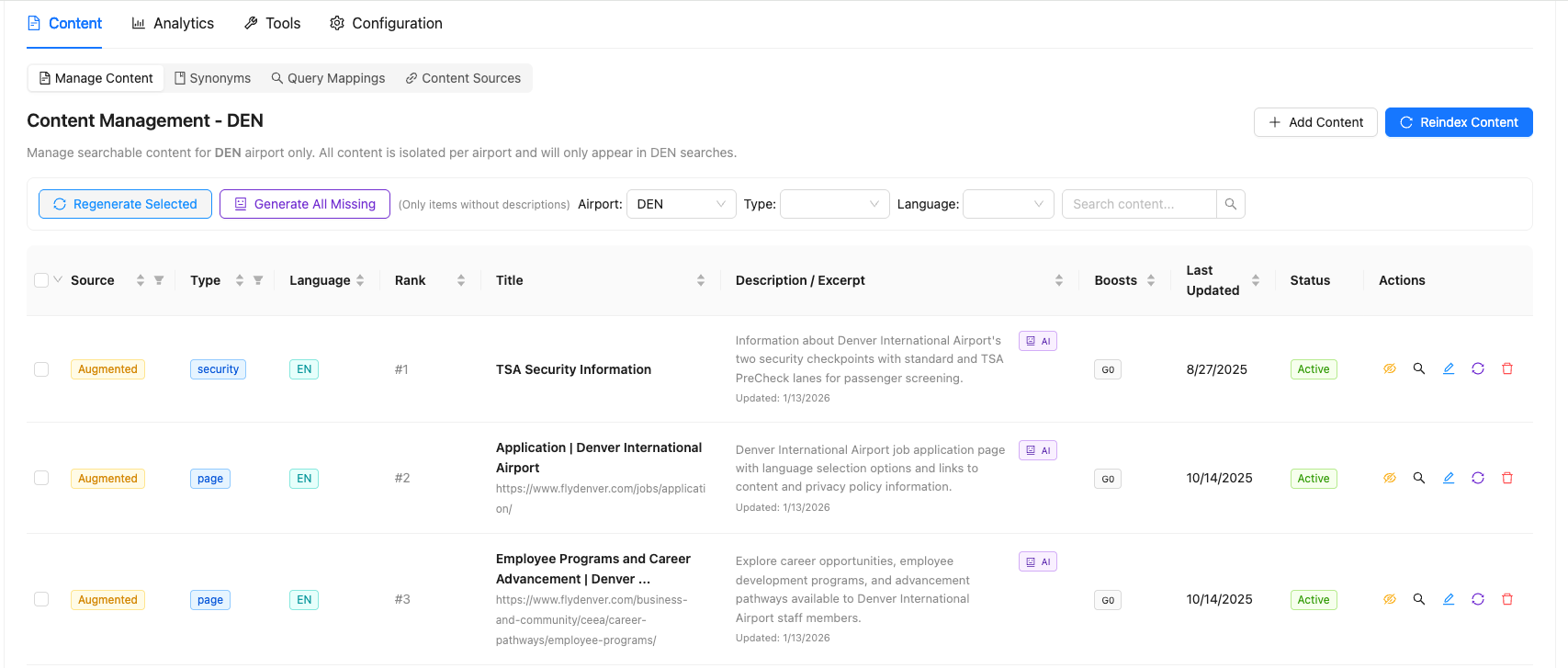
The Content Management interface allows you to control how content appears in search results.
Accessing Content Management:
Navigate to Search → Content → Content Management in the admin interface.
Searching for Content:
Use the search box to filter content by title, description, or other fields. This helps you quickly find specific pages to manage.

Understanding Search Results Display
When you search for a term (e.g., "hotel"), results are displayed in the order they'll appear on the front end. Each result shows:
- Title - The page title
- Description - Excerpt shown in search results
- Boost - Weighting controls (Global and Query-specific)
- Last Updated - When the content was last modified
- Active - Whether the page appears in search
Available Tools
For each search result, you can:
- Hide from search - Remove from all search results
- Edit description - Customize the excerpt shown
- Generate AI description - Auto-generate a description if one is missing
Boosting Content
There are two types of boosts to control search result rankings:
1. Global Boost
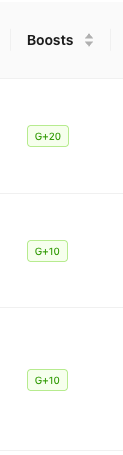
A global boost (e.g., +10) weights a page more heavily across all searches. When search results are close in relevance, globally boosted pages will rank higher.
When to use Global Boost:
- Critical, high-level pages (e.g., main terminal information)
- Pages that should always rank highly regardless of search term
- Your most important content that needs consistent visibility
2. Query-Specific Boost
Query-specific boosts target particular search terms. For example, you can boost the Westin hotel page specifically for searches like:
- "hotel at terminal"
- "hotel at airport"
- "hotels"
- "weston"
When to use Query-Specific Boost:
- Tweaking results for specific searches
- Pages relevant to particular terms but not globally important
- Fine-tuning search result order
Best Practice
Start with query-specific boosts to fine-tune results for particular searches. Only use global boosts for high-priority pages that need consistent top placement.
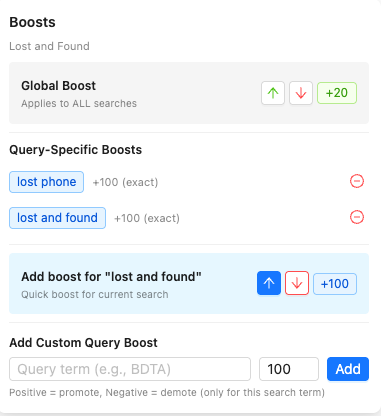
How to add a Query-Specific Boost:
- Click in the boost column for the content item
- Find the "Query Specific Boosts" section
- Enter the search term you want to boost for
- Click "Add"
- The term will be weighted more heavily for that specific query
Adding Custom Content
If users frequently search for something that doesn't exist at your airport, you can add custom content to communicate this.
Example: Users search for "gym" but there's no gym at your airport.
- Click Add Content button
- Enter information explaining there's no gym available
- Click OK
- Users will now see this message when searching for "gym"
This provides a better experience than showing no results.

Managing Synonyms
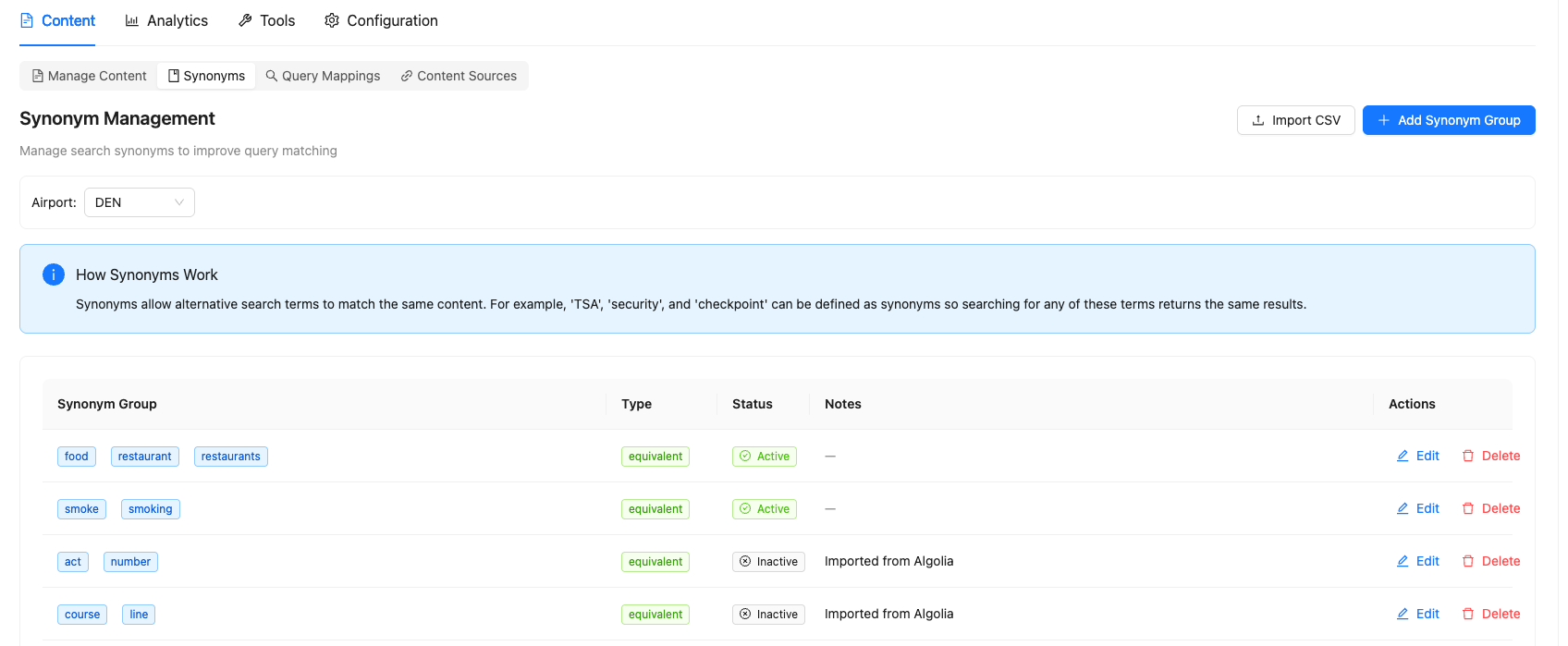
Synonyms help users find content even when they use different terminology. When you add synonym groups, searches for any term in the group will return results for all terms.
How Synonyms Work:
Create synonym groups where all terms are treated as equivalent. For example:
- "food" = "restaurants" = "dining"
- "security" = "TSA" = "screening"
When a user searches for "food," they'll also see results for "restaurants" and "dining."
Adding Synonyms:
- Navigate to Search → Synonyms
- Add terms that should be treated as equivalent
- Create synonym groups for common alternate terms
- Save your changes
INFO
Many common synonym groups are already imported from your previous search configuration. Review these to ensure they match your airport's terminology.
Query Mappings
Direct specific queries to specific results:
- Example: "wifi password" → WiFi information page
- Example: "lost and found" → Lost & Found contact info
Content Sources
Import content from:
- WordPress - Sync from your airport website
- Firecrawl - Crawl external pages
- MySQL sync - Direct database connection
- Manual upload - Add content directly
Need Help with Feed Data?
If you encounter issues with flight data, TSA wait times, or other real-time data feeds in search results, contact FlyFruition support. These feeds require backend configuration.
Regenerating AI Descriptions
If you notice search results missing descriptions, you can automatically generate them using AI.
To regenerate a description:
- Find the content item in Content Management
- Click the Generate AI description button
- The system will create a concise description of what the page is about
- Review and edit if needed
This is useful for newly added content or pages imported from external sources.
Applying Changes
Critical Step
After making any changes to content boosts, descriptions, or synonyms, you must click "Re-index Contents" to sync your changes. Without re-indexing, your changes won't appear on the live site.
Re-indexing process:
- Make all your desired changes (boosts, descriptions, etc.)
- Click the Re-index Contents button
- Wait for the re-indexing to complete
- Your changes are now live

Analytics
Monitor search performance:
- Popular search queries
- Zero-result queries (content gaps)
- AI-generated improvement suggestions
- User feedback on results