

Appearance
Dine and Shop Management Management
Manage your airport's dining, shopping, and lounge directory so travelers can easily discover what's available.
TIP
Don't see Dine and Shop Management in your dashboard? Reach out on Slack or email support@flyfruition.com to enable this feature for your airport.
Overview
The Dine and Shop Management management system allows you to:
- View and manage listings for restaurants, shops, lounges, and other points of interest (POIs)
- Filter and search by content type, zone, status, or name
- Edit listing details across Basic Info, Location, Contact, Media, and Admin fields
- Control status and priority to manage what appears on your public-facing site
- Sync content from WordPress or receive it via an API feed from a vendor (e.g., Atrius)
Changes made in FlyFruition are reflected on your airport's frontend Dine and Shop Management page.
Content Sources
Dine and Shop Management listings can be populated in two ways:
- API feed - Real-time data from a vendor such as Atrius
- WordPress migration - Imported from an existing WordPress post type using the Sync WordPress POIs button
INFO
Each listing displays its source identifier (e.g., wp_46070) so you can trace it back to the original content.
Key Concepts
Listings (POIs)
A listing represents a single point of interest at your airport — a restaurant, shop, lounge, or service. Each listing includes a name, type, location, status, priority, and additional details you can manage through the edit screen.
Content Types
Content types categorize each listing. Types visible in the management table include:
- Restaurant - Sit-down dining, quick service, cafes, and grab-and-go
- Shopping - Retail stores, newsstands, and duty-free
- Lounge - Airline lounges and premium access areas (e.g., American Airlines Admirals Club, American Express Centurion Lounge)
Status
Each listing has a status that controls its visibility:
- Active - Listing is live and visible to travelers on the frontend
- Inactive - Listing is hidden from public displays
Priority
Priority is a numeric value (e.g., 50) that determines the display order of listings. Adjust priority to feature popular or important establishments more prominently.
POI Management Table
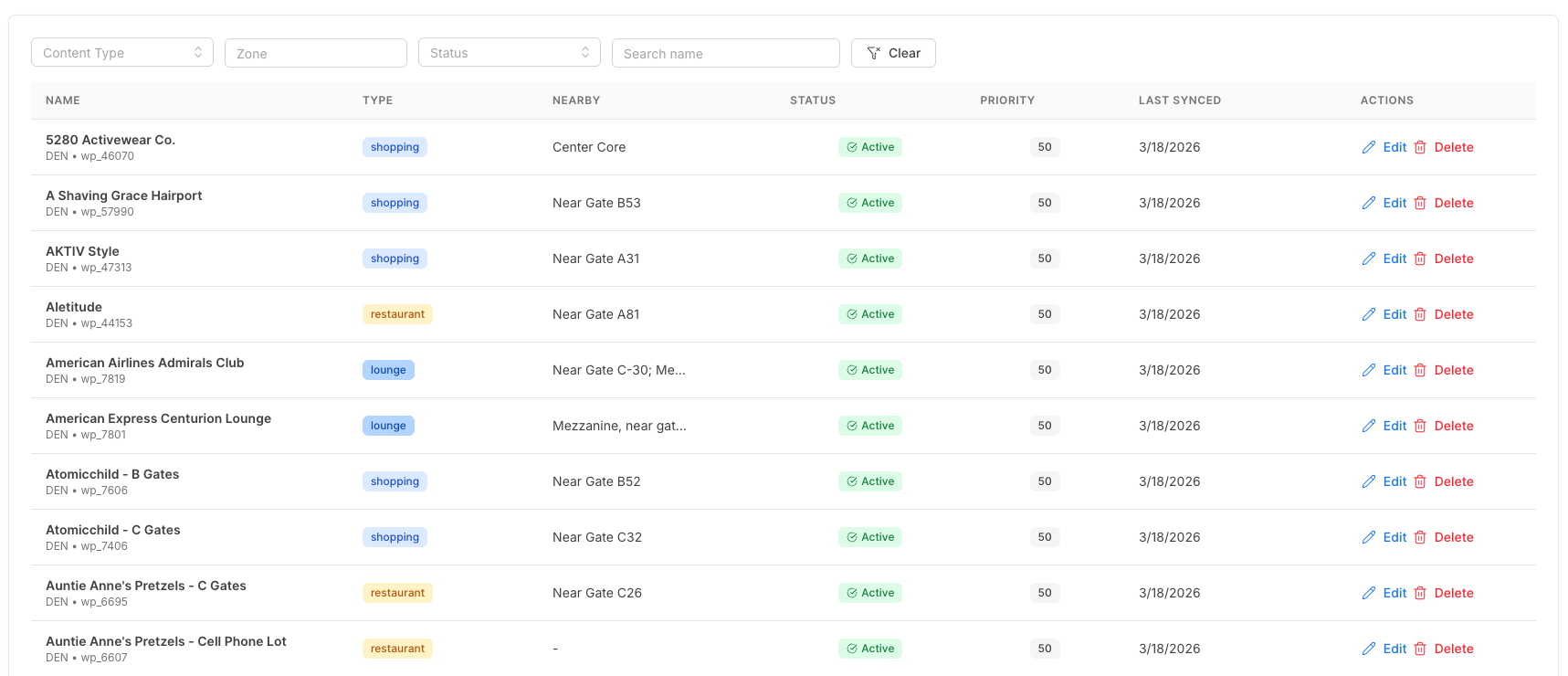
The main management view displays all listings in a table with the following columns:
| Column | Description |
|---|---|
| Name | Establishment name and source identifier |
| Type | Content type badge (restaurant, shopping, lounge) |
| Nearby | Location details such as gate or terminal area (e.g., Near Gate B53, Center Core) |
| Status | Active or inactive |
| Priority | Numeric display priority |
| Last Synced | Date the listing was last synced from its content source |
| Actions | Edit or Delete the listing |
Filtering and Searching
Use the filter bar at the top of the page to narrow down listings:
- Content Type - Filter by restaurant, shopping, lounge, etc.
- Zone - Filter by terminal zone or area
- Status - Filter by active or inactive listings
- Search name - Type a name to find a specific listing
- Clear - Reset all filters
Editing a Listing
Click Edit on any listing to open the edit dialog. The edit screen is organized into five tabs:
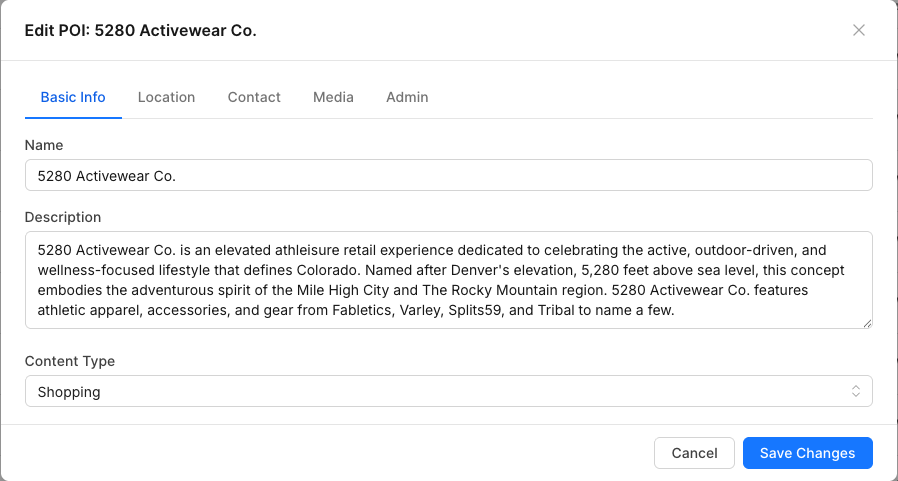
Basic Info
- Name - Display name of the establishment
- Description - A detailed description of what the establishment offers
- Content Type - Category of the listing (e.g., Shopping, Restaurant, Lounge)
Location
Configure where the listing is located within the airport, such as terminal, concourse, or nearby gate.
Contact
Add contact details and operating hours for the establishment, including:
- Phone number - Primary contact number
- Website - Link to the establishment's website
- Email - Contact email address
- Operating hours - Daily hours of operation
Media
Add or update the Thumbnail URL for the listing. This image is displayed alongside the listing on the frontend Dine and Shop Management page.
Admin
Configure administrative settings for the listing:
- Priority - Numeric value that controls display order
- Active - Toggle whether the listing is visible to travelers
- Searchable - Toggle whether the listing appears in search results
- Sync information - View and manage source sync details
To save your changes:
- Make edits across any of the tabs
- Click Save Changes
- Your updates will be reflected on the frontend Dine and Shop Management page